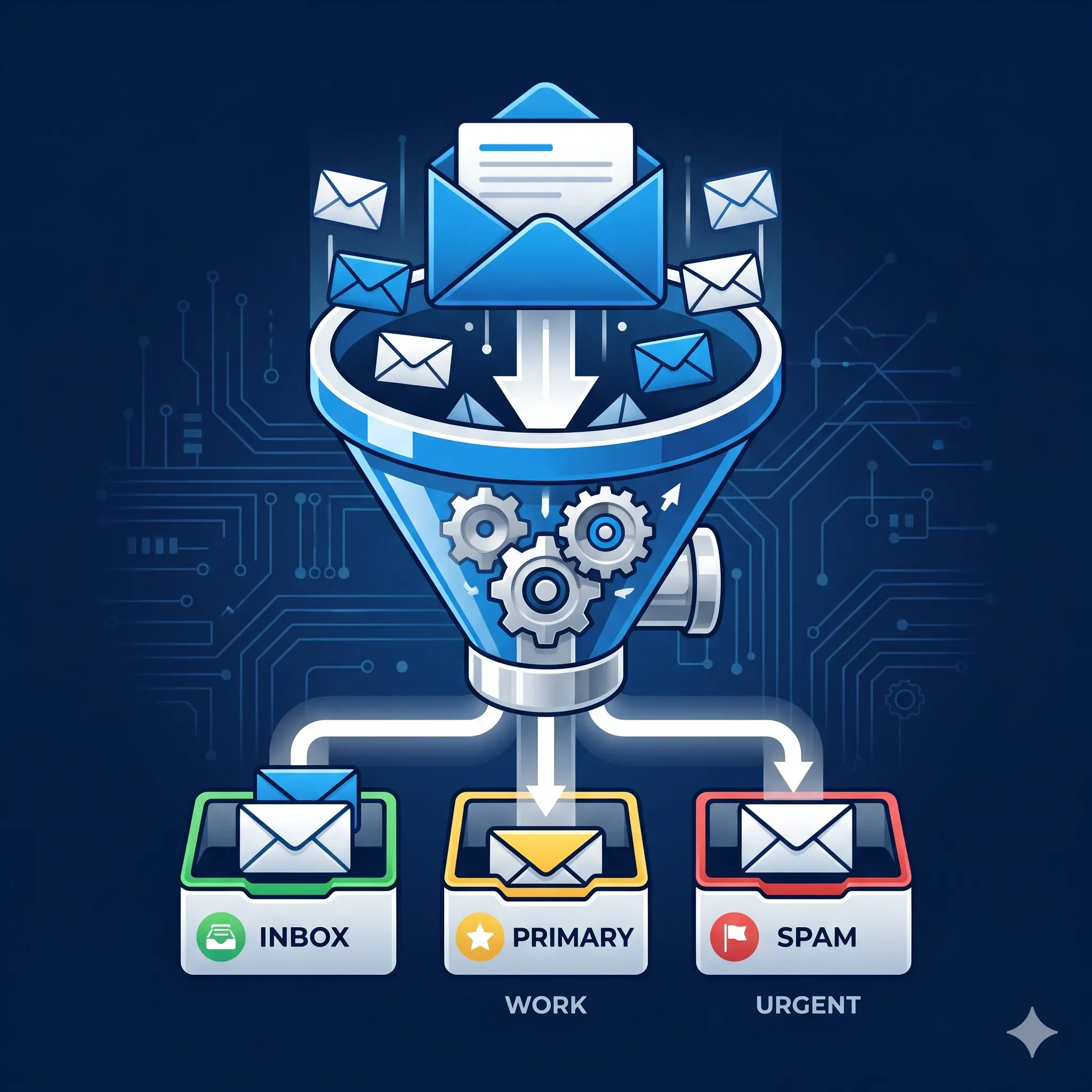
Complete Guide to Configuring Effective Email Filters for Spam and Phishing Protection
Email spam and phishing attacks remain persistent threats in today's digital landscape, with spam comprising nearly 80% of all emails sent globally. Protecting your inbox requires a multi-layered approach combining both global server-level filtering and individual account-level rules. This comprehensive guide will walk you through configuring effective email filters using cPanel's powerful filtering system and SpamAssassin technology.
Understanding Email Filter Types
Email filtering operates at two distinct levels, each serving specific purposes in your anti-spam strategy:
Global Email Filters
Global filters apply across all email addresses within a cPanel account. These broad-spectrum filters are ideal for:
- Blocking known spam domains
- Filtering messages with common phishing characteristics
- Managing account-wide email policies
- Creating organization-level security rules
Individual Account Filters
User-level filters target specific email addresses and provide granular control for:
- Personal email management
- Role-specific filtering (sales, support, etc.)
- Individual user preferences
- Customized spam thresholds
Setting Up SpamAssassin: Your First Line of Defense
SpamAssassin serves as the foundation of cPanel's spam filtering system, using a sophisticated point-based scoring system to identify potential spam messages.
How SpamAssassin's Scoring System Works
SpamAssassin assigns point values (called "hits") to emails based on various characteristics:
- Suspicious sender behavior
- Common spam phrases and patterns
- Malicious code detection
- Custom rules you define
The system compares the total score against your configured threshold. Lower thresholds (1-3) catch more spam but may flag legitimate emails, while higher thresholds (7-10) are more permissive but may allow some spam through.
Enabling SpamAssassin
To activate SpamAssassin in cPanel:
- Log into cPanel
- Navigate to Email section → Click Spam Filters
- Toggle the switch for "Process New Emails and Mark them as Spam"
- Confirm activation - You'll see a blue toggle and green success message
Configuring the Spam Threshold Score
The default threshold score of 5 provides balanced protection, but you may need to adjust based on your email patterns:
- Access Spam Filters in cPanel
- Click "Spam Threshold Score" link
- Select your preferred score from the dropdown:
- 1-2: Very aggressive (high false positives)
- 3-4: Aggressive (some false positives)
- 5: Balanced (default)
- 6-7: Lenient (fewer false positives)
- 8-10: Very lenient (more spam may pass)
- Click "Update Scoring Options"
Setting Up the Spam Box
Instead of deleting suspected spam immediately, use the Spam Box feature to review flagged messages:
- Enable Spam Box by toggling "Move New Spam to a Separate Folder"
- Access via webmail at
yourdomain.com/webmail - Review the "Junk" folder regularly for misclassified legitimate emails
- Adjust threshold if you notice patterns in false positives
Creating Effective Email Filter Rules
Email filters use conditional logic to process messages automatically. Understanding the components helps create precise, effective rules.
Filter Rule Components
Each filter rule consists of three elements:
1. Criteria Selection
Choose which part of the email to examine:
- From: Sender's email address
- Subject: Email subject line
- To: Recipient address
- Body: Message content
- Any Header: Complete email header information
- Spam Status: SpamAssassin's spam determination
- Spam Score: Numerical spam rating
2. Operators
Define how the system compares the criteria:
- equals: Exact string match
- contains: Partial string match
- begins with/ends with: Position-specific matching
- matches regex: Advanced pattern matching
- does not contain/match: Negative matching
3. Actions
Specify what happens to matching emails:
- Discard Message: Delete without notice
- Redirect to Email: Forward to another address
- Deliver to Folder: Sort into specific folders
- Fail With Message: Bounce with custom message
- Stop Processing Rules: Halt further filter processing
Essential Anti-Spam Filter Examples
Here are proven filter configurations for common spam and phishing scenarios:
Blocking Suspicious Domains
Rule: From ends with .tk
Action: Discard Message
Purpose: Blocks emails from .tk domains (commonly used by spammers)
Phishing Subject Line Detection
Rule: Subject matches regex (?i)(urgent|immediate|verify|suspended|account|security).*action
Action: Deliver to Folder → Suspicious
Purpose: Catches phishing emails with urgent action requests
Generic Pharmaceutical Spam
Rule: Subject contains viagra OR cialis OR pharmacy
Action: Discard Message
Purpose: Blocks common pharmaceutical spam
Suspicious Attachment Filtering
Rule: Any Header contains Content-Type.*application/(zip|exe|scr)
Action: Deliver to Folder → Quarantine
Purpose: Isolates potentially dangerous file attachments
Advanced Multi-Rule Filtering
Combine multiple conditions for sophisticated filtering:
Example: Legitimate Newsletter Filter
Rule 1: From contains newsletter@company.com
AND
Rule 2: Subject begins with [Newsletter]
Action: Deliver to Folder → Newsletters
Example: Comprehensive Phishing Detection
Rule 1: Subject contains urgent OR immediate OR verify
AND
Rule 2: Body contains click here OR verify now OR suspend
Action: Deliver to Folder → Suspected Phishing
Implementing Whitelist and Blacklist Strategies
Managing Blacklists (Never Allow)
Blacklist known spam sources to automatically flag their messages:
- Access cPanel → Spam Filters
- Expand "Additional Configurations"
- Click "Edit Spam Blacklist Settings"
- Add email addresses or domains:
- Individual:
spammer@badsite.com - Domain-wide:
@spamsite.com
- Individual:
- Click "Update Blacklist"
Managing Whitelists (Always Allow)
Whitelist trusted senders to prevent false positives:
- Navigate to Whitelist settings (same path as blacklist)
- Click "Edit Spam Whitelist Settings"
- Add trusted addresses:
- Specific sender:
colleague@company.com - Entire domain:
@trusteddomain.com
- Specific sender:
- Update Whitelist settings
Important: Avoid whitelisting your own domain, as spammers often forge legitimate domains.
Optimizing Filter Performance
Testing and Refinement Process
- Start Conservative: Begin with moderate settings (threshold 5)
- Monitor for One Week: Track both spam box and inbox
- Adjust Gradually: Make small threshold changes (±1 point)
- Document Changes: Keep records of what works
- Regular Review: Check filter effectiveness monthly
Performance Best Practices
- Limit filter quantity: Too many filters can slow email processing
- Order matters: Place most common filters first
- Use "Stop Processing": Prevent unnecessary rule evaluation
- Regular cleanup: Remove outdated or ineffective filters
- Test regex patterns: Verify complex expressions work correctly
Monitoring Filter Effectiveness
Track key metrics to assess your filtering success:
- False positive rate: Legitimate emails in spam folder
- False negative rate: Spam emails in inbox
- Processing speed: Email delivery delays
- User complaints: Feedback about missing emails
Troubleshooting Common Issues
When Legitimate Emails Are Blocked
- Check spam folder for misclassified messages
- Review filter logs in cPanel
- Examine SpamAssassin scores in email headers
- Whitelist the sender if appropriate
- Adjust threshold score if pattern emerges
When Spam Still Gets Through
- Lower threshold score gradually
- Add specific blacklist entries for persistent spammers
- Create targeted filters for common spam patterns
- Enable auto-delete for high-confidence spam (score 8+)
- Consider additional tools like DNS-based blacklists
Performance Problems
- Reduce filter complexity by simplifying rules
- Consolidate similar filters into single rules with OR operators
- Remove unused filters to improve processing speed
- Check server resources if delays persist
- Contact hosting provider for server-level optimization
Advanced Filtering Techniques
Regular Expression Patterns
For sophisticated spam detection, use regex patterns:
Common Phishing Patterns
Subject matches regex: (?i)(account|security).*(suspended|compromised|expired)Multiple Currency Spam
Body matches regex: (\$|€|£|\¥)[0-9]{3,}Pipe to Program Integration
Advanced users can pipe emails to custom scripts for complex processing:
- Create processing script with proper permissions (chmod 0700)
- Configure filter action: "Pipe to a Program"
- Enter script path relative to home directory
- Handle output carefully to avoid bounce messages
Email Client Integration
Maximize protection by configuring client-side rules:
Outlook Rules
- Create rules based on SpamAssassin headers
- Use "X-Spam-Flag: YES" for automatic sorting
- Set up custom folders for different spam types
Thunderbird Filters
- Configure adaptive junk controls
- Import SpamAssassin training data
- Create manual rules for specific threats
Apple Mail Rules
- Use server-side and local filtering
- Configure VIP lists for important contacts
- Set up smart mailboxes for spam review
Security Best Practices
Email Hygiene
- Never reply to suspected spam
- Don't click suspicious links or attachments
- Verify sender identity for unexpected emails
- Use separate emails for public registrations
Account Security
- Enable two-factor authentication on email accounts
- Use strong, unique passwords
- Regular security audits of filtering rules
- Monitor account access logs
Organizational Policies
- Train staff on phishing recognition
- Implement reporting procedures for suspicious emails
- Regular updates to filtering rules
- Backup and disaster recovery planning
Conclusion
Effective email filtering requires a balanced approach combining automated systems like SpamAssassin with custom rules tailored to your specific needs. Start with conservative settings, monitor performance carefully, and adjust gradually based on real-world results.
Remember that no filtering system is perfect—the goal is to achieve an optimal balance between blocking unwanted messages and ensuring legitimate communications reach their destination. Regular maintenance, monitoring, and adjustment of your filtering rules will provide the best long-term protection against spam and phishing attacks.
By implementing the strategies outlined in this guide, you'll significantly reduce unwanted emails while maintaining reliable communication channels for legitimate correspondence. The key to success lies in patience, careful observation, and continuous refinement of your filtering approach.
Need help with email configuration? Contact Lone Star Hosting for expert email hosting and security services.